
How it works
From catalog to contract, without a single meeting
Here is what your team does in the Portal, and what your buyers see on your branded website.
For your team, in the Portal
-
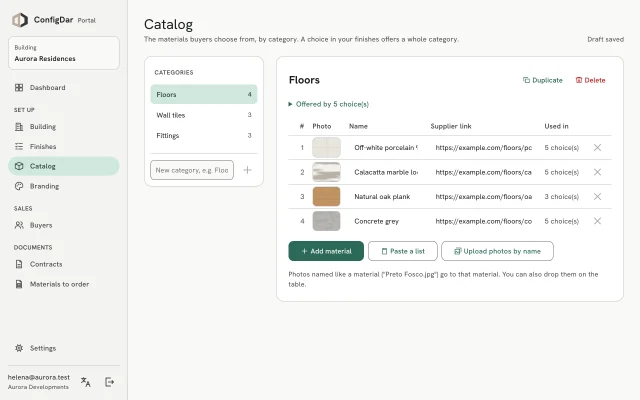
Add your catalog
List the materials buyers can choose from, by category: name, photo and supplier link. Paste a list from a spreadsheet and drop in photos named like the materials.
-
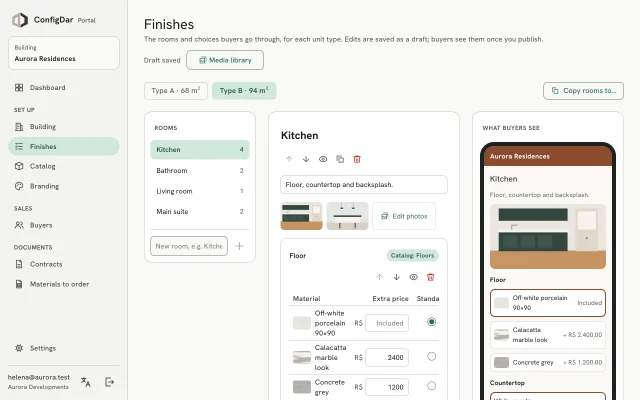
Build the finishes of each unit type
Add rooms and the choices in each one: which materials are offered, which is standard and what each option adds to the price. Follow-up questions appear only when they apply. A live preview shows exactly what buyers will see.
-
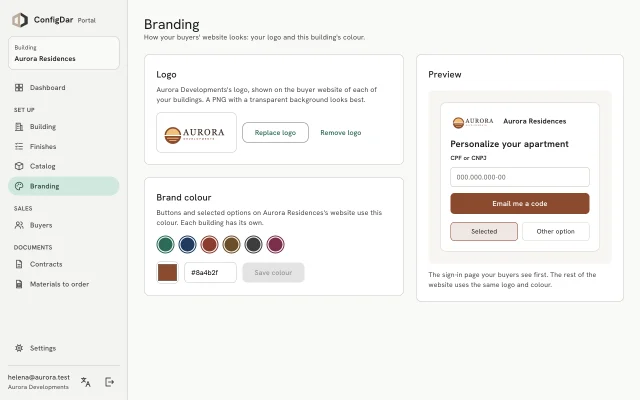
Put your brand on it
Upload your logo and choose your brand colour. The buyer website uses them on every page, on our link or on your own domain.
-
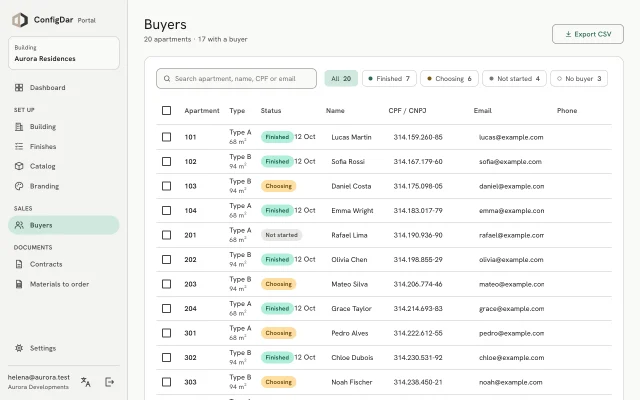
Add buyers and go live
Enter each apartment's buyer with their CPF or CNPJ and email, publish, and email them the link from the Portal. Set a choice deadline if you need one.
-
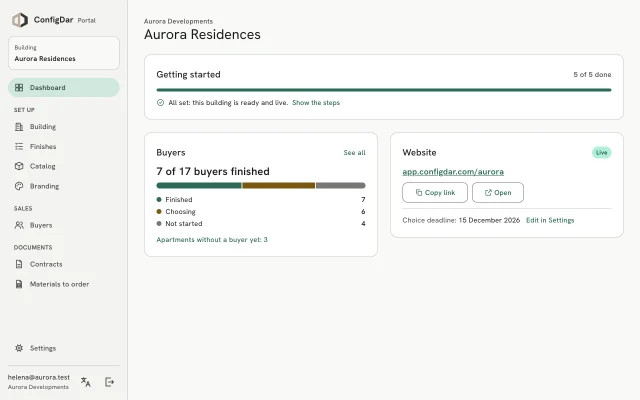
Follow every apartment
The dashboard shows how many buyers have finished, who is still choosing and who hasn't started. Filter the list and email the buyers who need a reminder.
-
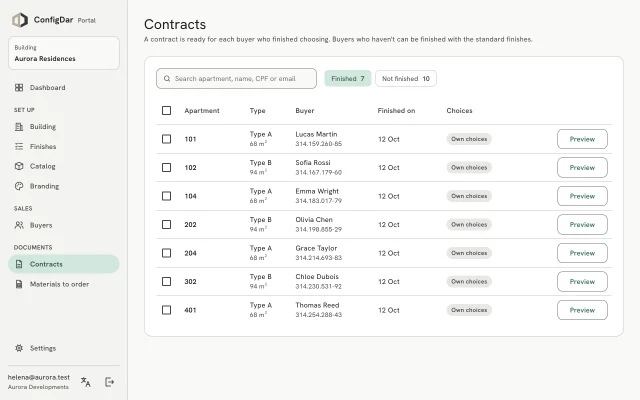
Download contracts and the order list
Each buyer's contract is ready as soon as they confirm, as an editable Word file. Materials to order counts every material per unit type and room. Export to Excel, PDF or CSV.
For your buyers, on your website
-
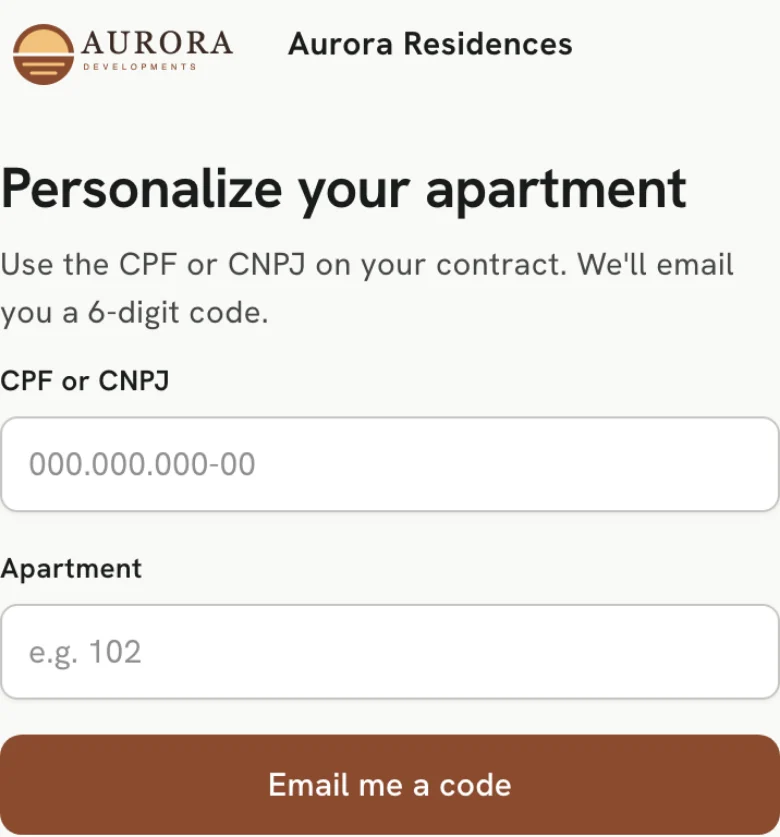
Sign in with CPF and a code
Buyers open your building's website, enter their CPF or CNPJ and apartment, and type the 6-digit code they receive by email.
-
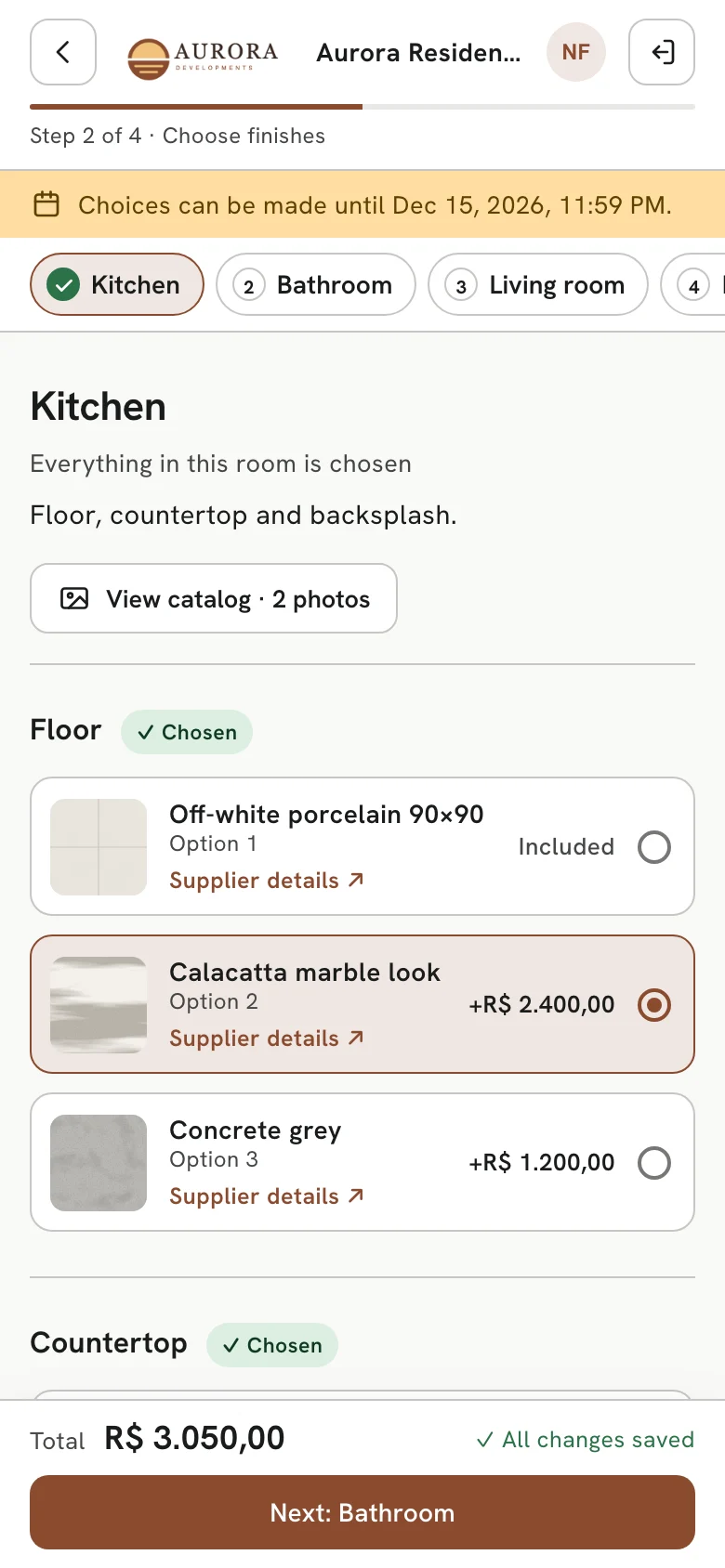
Choose room by room
Each room lists its choices with photos, supplier details and prices. Every choice is saved as they go, and the total is always in view.
-
Pick a payment plan and confirm
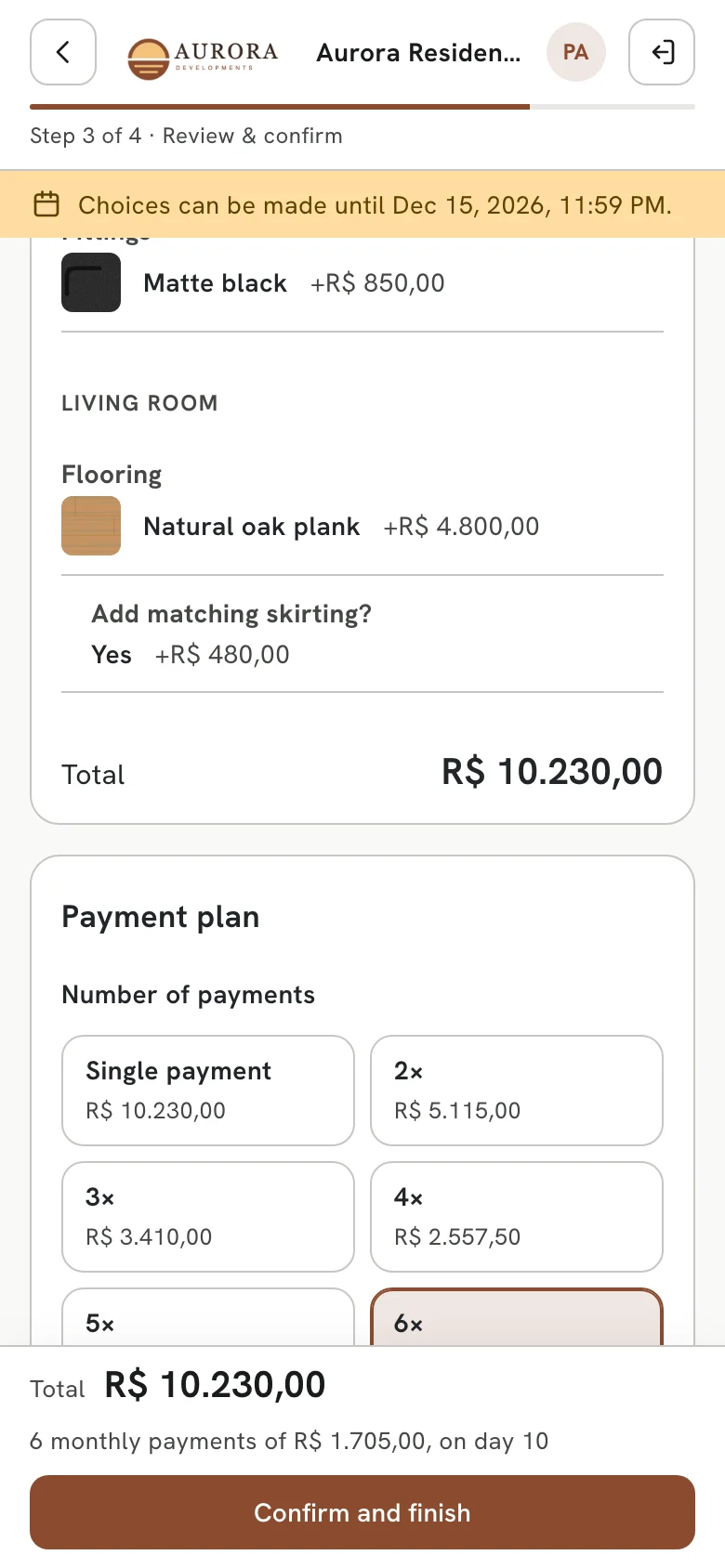
Buyers review every choice, pick the number of payments and the payment day, and confirm. You get their contract.
What you need to get started
- Your logo (a PNG with a transparent background works best)
- The materials buyers can choose from: names, photos and supplier links (a spreadsheet is fine)
- The finishes of each unit type, with the standard option and prices
- Each apartment's buyer: name, CPF or CNPJ and email
- Optional: a choice deadline and your own domain
See ConfigDar with your next building
In 20 minutes we'll show you the Portal and the buyer website with a real example, and answer your questions.
20-minute call · in English or Portuguese · no commitment